BetterAntispam TeamHow we write these8 min read
How to Secure a Discord Server: 15-Step Checklist (2026)
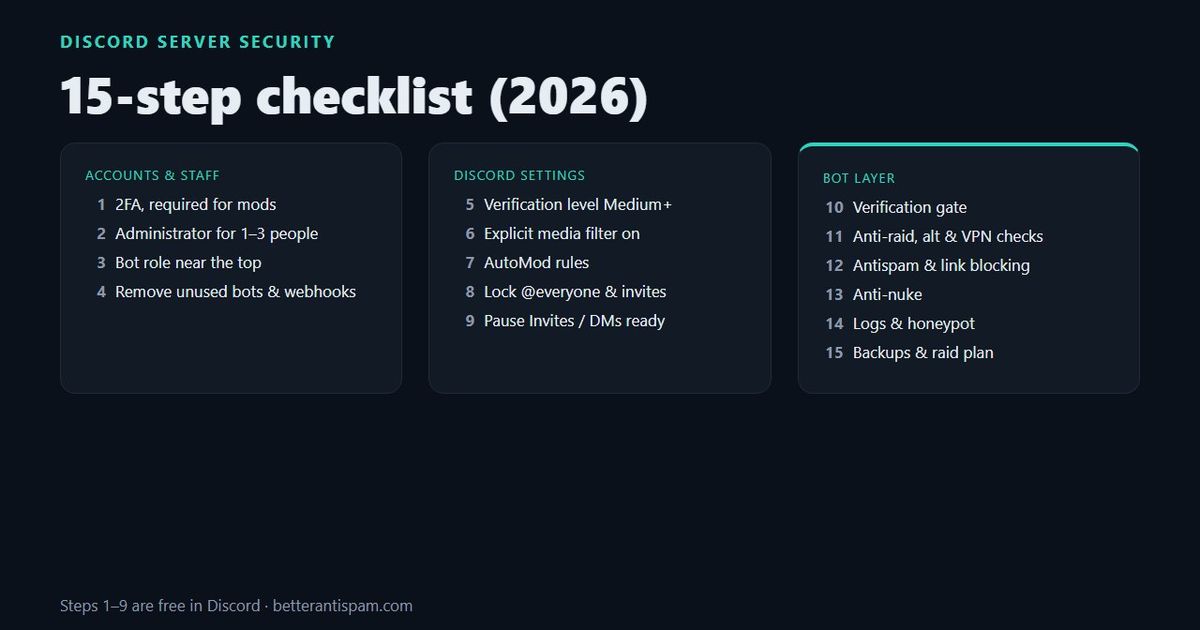
To secure a Discord server, protect the accounts first, then the permissions, then the joins. Turn on 2FA and require it for moderators. Give Administrator and other dangerous permissions to as few people as possible. Set the verification level to at least Medium, and turn on AutoMod and the explicit media filter. Then add a security bot for what Discord doesn’t do on its own: a verification gate, anti-raid, antispam, anti-nuke, logs and backups. The 15-step checklist below goes in that order. Steps 1 to 9 use only Discord’s free settings. Steps 10 to 15 use a bot. BetterAntispam covers all of them on its free plan, but any good security bot will do.
Editorial disclosure: This guide is published by BetterAntispam. Discord’s built-in settings come first because they cost nothing and stop a lot. Every bot default below comes from BetterAntispam’s source code, and I say where a feature is paid.
Why Discord servers get attacked
Most damage comes from three directions, and each needs a different defence:
| Threat | What it looks like | Main defence |
|---|---|---|
| Raid | Dozens of new accounts join and spam, ping or post shock content | Verification level, verification gate, anti-raid |
| Spam and scams | Scam links, fake Nitro, ads and invites in every channel | AutoMod, antispam, link blocking |
| Nuke | Someone with staff permissions deletes channels, bans everyone or adds webhooks | Fewer admins, 2FA, anti-nuke, backups |
The nuke is the one that ends servers, and it almost always comes from a hacked staff account or a bot with too many permissions. That is why the checklist starts with accounts, not with spam.
Part 1: Accounts and staff
1. Turn on 2FA, and require it for moderators
Turn on two-factor authentication on your own account first (User Settings → My Account). Then, as the owner, open the server’s Safety Setup settings and require 2FA for moderator actions. Staff without 2FA can then no longer ban, kick or delete messages.
2FA does not stop every hack. A scanned QR code or a token grabber gets past it. If a staff account is hacked anyway, follow what to do if you’re hacked on Discord.
2. Give Administrator to as few people as possible
Administrator skips every permission check, including channel overrides. Give it to the owner and one or two people you would trust with the server itself. Moderators need Kick, Ban, Timeout and Manage Messages, not Administrator.
Be just as careful with Manage Roles, Manage Channels, Manage Webhooks and Manage Server. Each one can wreck a server on its own. Discord permissions explained goes through each permission.
3. Fix the role order
A role can only manage roles below it. Put your security bot’s role near the top, above every role it has to act on, so it can time out or strip a rogue moderator. Keep staff roles in clear tiers, so a moderator can’t edit an admin role.
4. Remove bots, webhooks and integrations you don’t use
Every bot with Administrator is a way in if its owner, or its token, is compromised. Open Server Settings → Integrations, remove what you no longer use, and give the rest only the permissions they need. Delete webhooks you don’t recognise. Scam webhooks are a common leftover after a hacked admin account.
Part 2: Discord’s built-in settings
5. Set the verification level to Medium or higher
The verification level decides who can talk the moment they join. Medium requires an account older than 5 minutes. High also makes them wait 10 minutes in the server. Highest requires a verified phone number. For most public servers, Medium is the baseline and High is the right choice during an attack. Full comparison: Discord verification level.
6. Turn on the explicit media filter
In Server Settings → Safety Setup, set the explicit image filter to scan media from everyone, or at least from members without roles. It is free, and it stops the most common shock raid.
7. Set up AutoMod
Discord’s AutoMod catches a lot for free:
- Block Mention Spam, which stops messages with too many mentions
- Block Suspected Spam Content
- Commonly Flagged Words and your own keyword list
Our AutoMod setup guide walks through each rule, and 4 copy-paste AutoMod rules gives you ready-made ones.
8. Lock down @everyone pings and invites
Turn off Mention @everyone, @here and All Roles for every normal role. That one switch defuses most ping raids. Then decide who can Create Invite: if everyone can, a raider who gets in can share fresh invites. Use invites that expire for anything posted publicly.
9. Know where Pause Invites and Pause DMs are
Discord’s Security Actions let you pause new invites and DMs between members for a while during an incident. Find them now, not during a raid. Discord’s own Four Steps to a Super Safe Server and raid protection guide cover these settings too.
That covers what Discord does for free. The rest needs a bot, because Discord can’t count join waves, cross-channel spam or a staff member deleting ten channels in a minute.
Part 3: The bot layer
10. Put a verification gate in front of the server
A verification gate means new members see only a verify channel until they pass a check. BetterAntispam’s verification supports a one-click button (the default), an image captcha, a math question or a hidden challenge. Members who don’t verify in time can be kicked, timed out or quarantined. If you use auto role, the roles wait until the member passes.
Guide: Discord verification bot.
11. Turn on anti-raid, a minimum account age, and alt and VPN checks
Anti-raid watches join waves and scales with server size. In a server of up to 50 members, it starts checking at 3 joins in 10 seconds and always acts at 5. Add a minimum account age so day-old accounts can’t walk in. Web verification can also flag alt accounts and block VPNs and proxies, and those checks are free.
During a raid, /raidmode enable kicks every new join until you turn it off, and lockdown closes channels. Locking one channel is free. Locking every channel at once is Premium. Background: what is a raid on Discord and how to stop a Discord raid.
12. Turn on antispam and link blocking
Antispam is on by default. It acts at 4 messages in 12 seconds and also catches duplicates, gibberish, caps, long messages, ghost pings and untrusted links. Members get 3 warnings, then a 5-minute mute. Ad-block is off by default. Turn it on to remove server invites, link shorteners and IP loggers. Not sure where to draw the line? See what counts as spam on Discord.
13. Turn on anti-nuke
Anti-nuke watches the audit log and stops a staff account or bot that goes past a limit in a short window. Some defaults: 3 channel deletes, 5 bans, 3 webhooks, 1 Administrator grant. By default it strips the account’s roles, so a hacked moderator loses their power within seconds and can get it back later. This is the step that saves servers, so check it is on in /antinuke settings. More: best Discord anti-nuke bot.
14. Turn on logging, a honeypot, and the extra detectors
- Logs. Send moderation, message, join and role logs to a staff-only channel.
/setupcreatesbetterantispam-logsfor you. Message logs are also the only way to see what an edited message used to say: see how to see edited messages on Discord. - Honeypot. A trap channel no real member would post in. Spam bots and hacked accounts that post everywhere get caught. Guide: how to make a honeypot channel.
- Selfbot detection (off by default) catches automated user accounts.
- Image filter scans uploads for NSFW content. Free servers get 5 images a day; Premium raises the limit.
15. Back up the server and write a raid plan
/backup create saves your channels, roles and settings. Free servers can keep 15 backups, plus one automatic backup a week. Then write a short plan in your staff channel: who runs Pause Invites, who runs /raidmode enable, and who checks the audit log. If the worst happens, my Discord server got nuked walks through recovery.
The checklist at a glance
| # | Step | Where | Cost |
|---|---|---|---|
| 1 | 2FA, required for mods | User Settings, Safety Setup | Free |
| 2 | Few admins | Server Settings → Roles | Free |
| 3 | Role order | Server Settings → Roles | Free |
| 4 | Remove unused bots and webhooks | Integrations | Free |
| 5 | Verification level Medium+ | Safety Setup | Free |
| 6 | Explicit media filter | Safety Setup | Free |
| 7 | AutoMod | Safety Setup → AutoMod | Free |
| 8 | Lock @everyone and invites | Roles | Free |
| 9 | Pause Invites / DMs | Security Actions | Free |
| 10 | Verification gate | /verification settings | Free |
| 11 | Anti-raid, account age, alt and VPN checks | /antiraid settings | Free |
| 12 | Antispam, ad-block | /antispam settings, /adblock settings | Free |
| 13 | Anti-nuke | /antinuke settings | Free |
| 14 | Logs, honeypot, selfbot, image filter | /logging settings and others | Free, with limits |
| 15 | Backups and a raid plan | /backup create | Free, with limits |
You can see every feature on the features page, what is free on the free plan page, and what Premium adds on the Premium page.
What a security bot can’t do
I’d rather be honest about this. No bot can stop your account from being hacked. No bot can undo a deletion it didn’t see coming, which is why backups matter. And no bot can save a server where five people have Administrator and none of them use 2FA. Steps 1 to 4 matter more than any bot.
FAQ
What is the most important Discord server security setting?
Limiting Administrator, together with 2FA for staff. Most destroyed servers were nuked from a hacked admin account, not raided from outside.
Is Discord’s AutoMod enough to secure a server?
No. AutoMod checks each message on its own. It can’t see join waves, the same message pasted across channels, or a moderator deleting channels. Use it together with a security bot.
What verification level should my Discord server use?
Medium for most public servers, and High during a raid or for large servers. Highest requires a phone number and blocks some real people.
How do I protect my server from being nuked?
Fewer admins, 2FA for staff, the bot role near the top, anti-nuke turned on, and regular backups.
Is BetterAntispam free?
Core protection is free: verification, anti-raid, antispam, anti-nuke, logging, honeypot and backups. Premium raises limits and adds extras such as locking every channel at once.
Start with the first three
Turn on 2FA for staff, cut down your admins, and put a verification gate in front of the server. That alone blocks most attacks. Then add BetterAntispam, run /setup, and work through steps 10 to 15 at your own pace.
Core is free · Setup in Discord
Ready to protect your server?
Invite BetterAntispam. Core antiraid, antispam, and antinuke are free. Configuration is slash commands inside Discord.