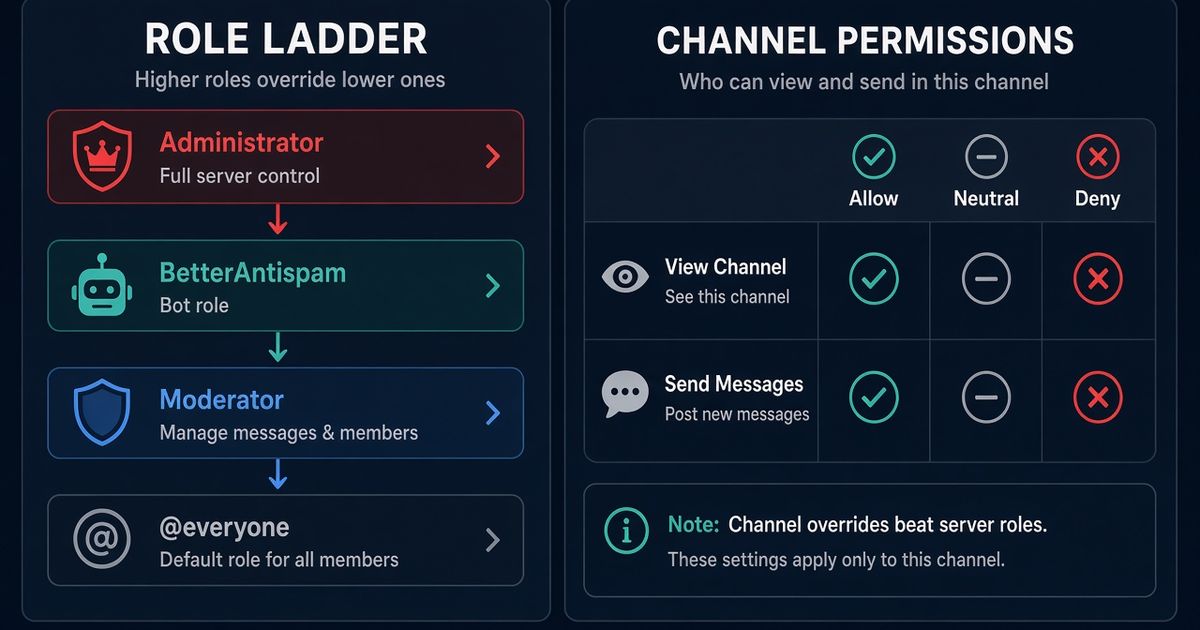
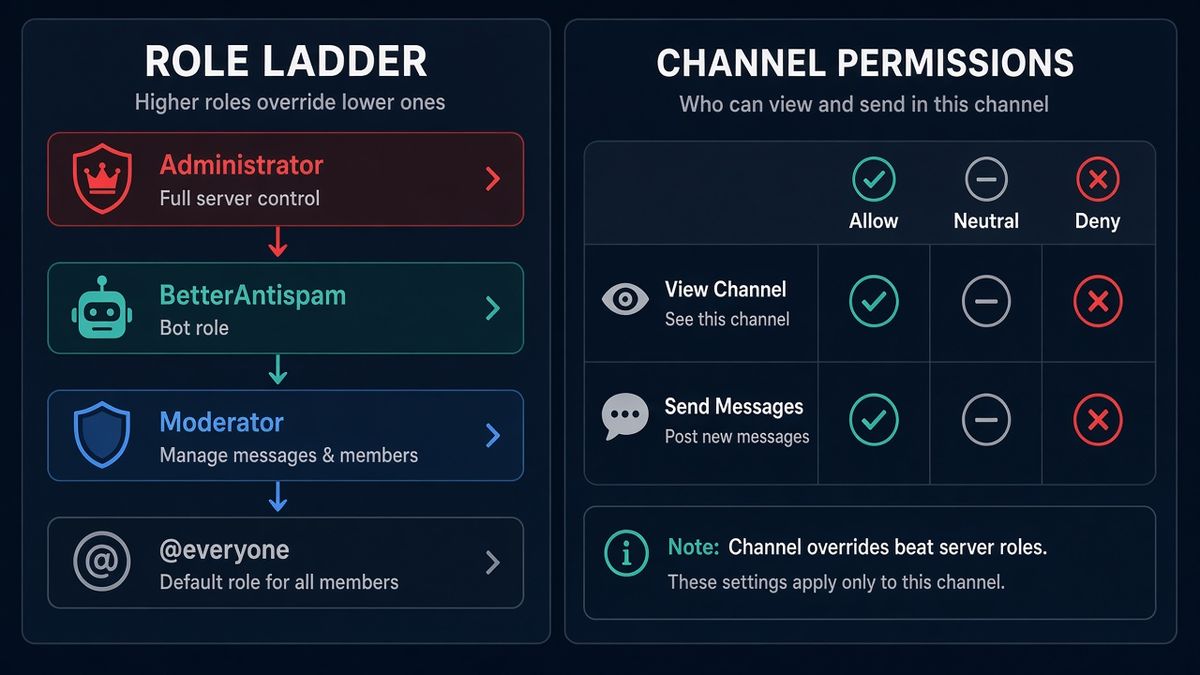
Discord permissions are role flags at the server, then channel overwrites that beat those flags. Administrator grants every permission and skips channel restrictions. Hierarchy still limits who you can kick, ban, or manage. Discord’s own order is Server Settings → Roles, then per-channel Permissions. BetterAntispam /scan (Administrator) lists dangerous @everyone overwrites, roles holding Administrator, Manage Server, Manage Roles, Manage Webhooks, Ban Members, Kick Members, Mention Everyone, Create Events, and Create Instant Invite, plus other bots that look risky. I maintain this bot. It reports. It does not rewrite your role tree for you.
Editorial disclosure: This guide is published by BetterAntispam. We recommend BetterAntispam when you want a permission audit, antinuke, and antiraid in one slash-command stack. Discord’s own Roles tab comes first. Permission rules come from Discord’s support articles. Command names come from the bot’s source.
How to set up Discord permissions
This is the first body section: Discord’s native path, then the command that audits it.
- Open Server Settings → Roles. Discord’s roles and permissions article is the official page. Create roles from least power to most: member, helper, moderator, admin.
- Leave
@everyonewith almost nothing. View Channels and Send Messages are enough for a public chat. Turn off Administrator, Manage Server, Manage Roles, Manage Webhooks, Ban Members, Kick Members, and Mention Everyone on@everyone. - Grant each staff role the smallest list that does the job. Kick Members without Administrator. Manage Messages without Manage Server. Discord’s permissions FAQ is the official “role vs channel” page.
- Drag the hierarchy. A role can only kick, ban, or edit roles below it. The server owner sits above every role.
- Open a channel → Edit Channel → Permissions. Set
@everyonefirst, then add staff overwrites. Channel permissions override the server role. - Add BetterAntispam (Manage Server to invite). Run
/setup(Administrator), then/scan(Administrator). Read the role-risk and bot sections before you add more staff. - Turn on 2FA for moderation in Safety Setup after you enable 2FA on the owner account.
Docs: customer documentation. Support: Discord support server. /scan is free. Shield is sold in the application store.
If the next job is stopping unauthorized apps, that is a different page: how to stop bots from joining a Discord server.
Server roles vs channel overwrites
A role is a bundle of switches. Members inherit every role they hold. Discord combines those switches at the server, then applies the channel overwrite.
| Layer | Where | What it controls |
|---|---|---|
| @everyone | Server Settings → Roles | The default for every member |
| Named roles | Same Roles tab | Extra flags on top of @everyone |
| Channel overwrite | Edit Channel → Permissions | Per-channel Allow / Deny that beats the server role |
| Category overwrite | Edit Category → Permissions | Default for channels in that category, unless a channel sets its own |
| Administrator | Any role with that flag | Every permission, and channel Deny does not stop it |
Green Allow on a channel wins over a missing server flag. Red Deny on a channel takes that flag away. Neutral means “use the role.” Discord’s FAQ states it plainly: channel permissions override server permissions.
Do not give a helper an Allow overwrite for Manage Webhooks on #announcements because it was faster than editing the role. Overwrites are easy to forget and hard to audit by eye.
What Administrator actually does
Administrator is not “senior moderator.” It is every permission at once, including Manage Server, Manage Roles, Ban Members, and the ability to ignore channel Deny.
That is why a lock on #general does not silence an Administrator. The lock page already says this: how to lock a Discord channel.
Hierarchy still applies. An Administrator role below another Administrator role cannot kick or ban that higher role, and cannot drag roles above itself. The owner can always do both.
Give Administrator to the owner, a tiny trusted admin role, and the one security bot you actually use. Everyone else gets named permissions.
The permissions /scan treats as dangerous
/scan (Administrator) is labeled “Security scan — review protections, role risks, webhooks, and recent activity.” It is an audit, not a rewrite. These are the flags it lists on roles, including bot roles:
| Permission | Why it is on the list |
|---|---|
| Administrator | Full bypass. Channel Deny does not apply |
| Manage Server | Invite apps, pause invites, change the server |
| Manage Roles | Grant other dangerous flags, including climbing toward Administrator |
| Manage Webhooks | Post as the server in any channel the webhook can reach |
| Ban Members | Wipe the member list |
| Kick Members | Mass-remove people without a ban record |
| Mention Everyone | @everyone / @here spam |
| Create Events | Spam or phishing via scheduled events |
| Create Instant Invite | Fresh invite links for a raid |
@everyone holding any of those is a critical finding. A named role holding Administrator is also critical. The rest of the list is medium unless you meant to grant it.
Other bots are called out separately when they look risky: Administrator plus unverified, Administrator plus joined in the last 72 hours, or unverified plus new. A verified bot that has held Administrator for months still shows up in the role-permission list. It just may not hit the extra “risky bot” line.
/scan will not drag roles for you. After you read it, you still edit Server Settings → Roles.
Hierarchy, 2FA, and View Server As Role
Discord’s four steps to a safer server put roles next to verification level, server-wide 2FA, and the explicit image filter. Do those four before you buy another bot.
Hierarchy. Put the security bot role above every staff role it must be allowed to punish. A bot below a rogue Administrator is a spectator. Longer write-up: anti-nuke Discord.
2FA for moderation. The owner enables it in Safety Setup after turning on 2FA on their own account. Kick, ban, and role edits then require a 2FA-enabled staff account. Stolen-password staff cannot finish the click.
View Server As Role. Owners and Administrators can preview the server as a chosen role. Use it before you hide a staff channel. Discord’s View Server As Role guide is the official page.
Run /antinuke settings (Administrator) after the tree is clean. A permission audit does not watch the audit log. Antinuke does. Product page: anti-nuke.
FAQ
How do Discord permissions work? Roles set server-wide flags. Channel overwrites override those flags. Administrator grants every flag and ignores channel Deny. Hierarchy still limits kick, ban, and role edits.
Do channel permissions override roles? Yes. Discord’s permissions FAQ says channel permissions override server permissions. Administrator is the exception: it bypasses the channel lock.
What is the Discord Administrator permission? It is every permission at once, plus a bypass of channel restrictions. Do not hand it to helpers. Do not hand it to a bot you have not audited.
How do I see what a role can actually see? Server Settings → Roles → select the role → View Server As Role, or the same control from the member list if you have Administrator. Official guide: View Server As Role.
What does BetterAntispam /scan need? Administrator. It reports dangerous @everyone overwrites, roles holding the dangerous permission list, webhooks, and other bots that look risky. It does not edit roles.
Can I give Kick Members without Administrator? Yes. That is the correct pattern. Named permissions for named jobs. Administrator is the last resort.
Why can a moderator not kick an admin? Role hierarchy. You can only affect members whose highest role sits below yours. Discord documents that on the roles and permissions page.
Core is free · Administrator
Ready to audit Discord permissions?
Invite BetterAntispam, run /setup, then /scan (Administrator). It lists dangerous role grants and risky bots.