
Moderators: Preserve 45 days of Discord audit logs, link case notes


Use Discord's native audit log for authoritative admin attribution and a private, bot-fed mod-log channel for lasting case history. The audit log keeps entries for only 45 days, so anything you need beyond that window has to live in your own log channel. Review any logging bot's data access before you rely on it, and lock the mod-log channel to staff only.
TL;DR: - Discord’s audit log provides a 45-day window for tracking administrative actions like bans, kicks, and role changes, requiring external logs for longer retention. - Filtering audit logs by action type and user ID streamlines investigations into message deletions, bans, or AutoMod hits within the available time frame. - Implementing a private, bot-fed mod-log channel helps preserve ongoing case history, including warnings and evidence, beyond Discord’s native 45-day limit. - Setup best practices advise reviewing bot data access, enforcing permissions, and linking audit entries with case IDs for accurate member dispute resolution. - Automated moderation tools like Better Antispam reduce manual logging efforts by handling spam waves and raid responses in real time, filling mod logs with resolved incidents.
Table of Contents
- What Discord records natively: audit log events and Members/Mod View
- How to check and filter Discord audit logs
- Set up a persistent mod-log channel and logging bot
- Privacy, retention, and policy considerations
- Correlating audit-log entries with bot logs: step-by-step attribution workflow
- A moderator workflow built on structured case logs
- What most servers get wrong about mod logs
- How Better Antispam helps with mod logs
- Official documentation and policy links moderators should bookmark
- Sources
- FAQ
What Discord records natively: audit log events and Members/Mod View
Discord's built-in audit log tracks administrative actions automatically, with no bot required. It covers a broad range of server changes, though it was never designed to hold detailed moderation narratives like warning histories or evidence notes.
The core categories moderators check most often are:
- Member actions: kicks, bans, timeouts, and role changes.
- Channel and server settings: creation, deletion, permission overwrites, and webhook changes.
- Message events: single and bulk message deletion.
- AutoMod events: blocked messages and content flagged to a review channel.
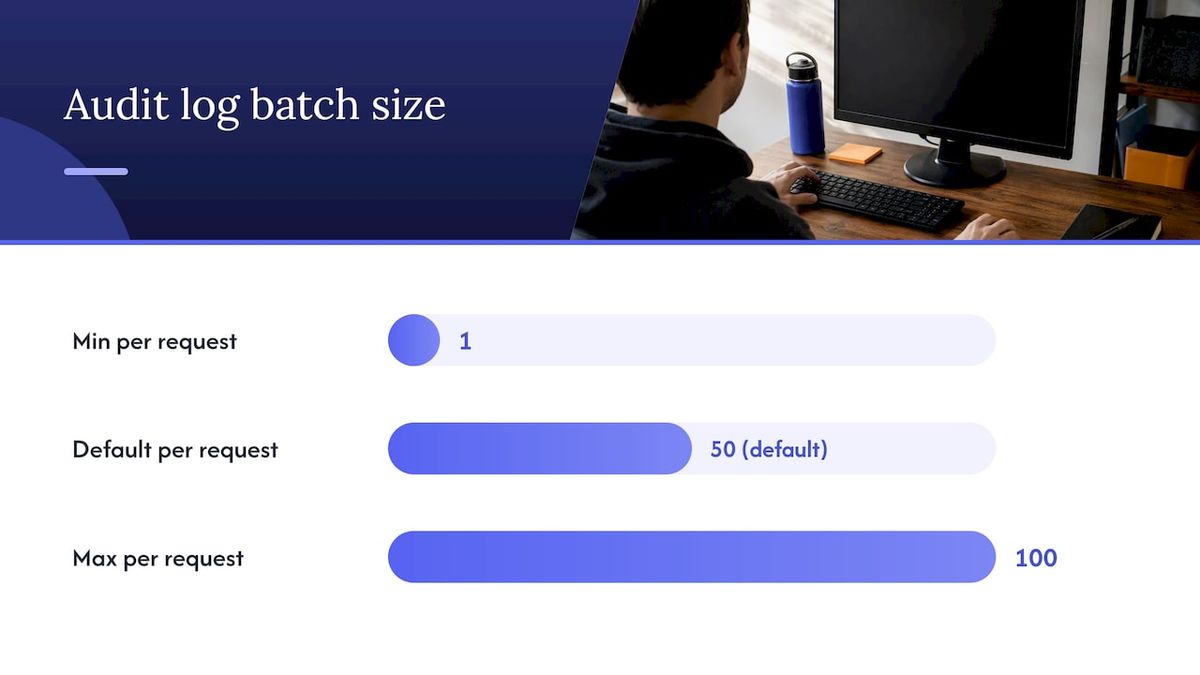
Entries sit in Discord's systems for 45 days, and the API returns them in batches of 1 to 100 with a default of 50 per request, using before/after cursors to paginate further back. That window matters: if a dispute surfaces two months after an incident, the audit trail for it is already gone unless you saved it elsewhere.
For quicker, member-focused investigations, the Members page gives eligible owners and moderators a Mod View with account age, join date, role history, and message counts, plus direct moderation actions from the same screen. It is faster than the audit log for a "what has this person been doing" check, but it does not replace the audit log's administrative record of who took what action and when.
How to check and filter Discord audit logs
Most day-to-day questions ("who banned this person," "who deleted that message") can be answered from the client in under a minute.
- Open Server Settings and select Audit Log from the left sidebar.
- Confirm you hold the
VIEW_AUDIT_LOGpermission; without it, the tab will not show entries. - Use the filter menus to narrow results by action type or by the moderator who performed it.
- Scroll through the paginated list, since Discord loads entries in batches rather than all at once.
For bots and custom tooling, the same data is available through GET /guilds/{guild.id}/audit-logs, which accepts user_id, action_type, and before/after parameters along with a limit between 1 and 100 (default 50). Results are returned in reverse chronological order, so pagination with cursors is the reliable way to walk further back before the 45-day cutoff.
To find who deleted messages, filter for MESSAGE_DELETE or MESSAGE_BULK_DELETE action types rather than scrolling manually. Tracing a ban, a role change, or an AutoMod hit works the same way: filter by the specific action type first, then narrow by user ID if you know who was involved.
Pro Tip: When your bot performs an action worth auditing, pass the X-Audit-Log-Reason header. Discord stores up to 512 URL-encoded characters in the entry's reason field, which saves you a lookup later.
Set up a persistent mod-log channel and logging bot
The audit log tells you what an admin action was. A mod-log channel tells you the story around it, warnings, prior incidents, evidence, and outcome, and it is the piece most servers skip until they need it.
At minimum, each mod-log entry should record:
- A case ID for cross-referencing later.
- Event type (warn, mute, ban, kick, note).
- Target user or object ID and the acting moderator or bot.
- Reason, timestamp, any evidence links, and the audit entry ID when one exists.
On configuration, keep the channel private to staff roles only, decide early whether entries post as embeds or plain text (embeds are easier to scan but harder to search by raw text), and settle on a retention policy, including whether older cases get archived to an external database once the channel grows large.
Before turning a logging bot loose on a live server, run through a short checklist: review its Data Access tab, grant only the permissions it actually needs, test it in a staging server first, confirm its logs correlate cleanly with real audit entries, and check whether it supports the X-Audit-Log-Reason header for its own actions.
Pro Tip: Structure your case records the way Redbot's modlog module does, with create_case and get_case functions, so you can query a member's full history instead of scrolling through a channel.
Privacy, retention, and policy considerations
Discord's own audit log clears entries after 45 days, but a bot-fed mod-log can persist indefinitely, which shifts real responsibility onto you as the operator. The longer you hold moderation data, the more careful you need to be about who can see it and why.
A few practices keep that responsibility manageable:
- Never post NSFW evidence directly into a mod-log channel; describe it or link to a securely gated location instead.
- Age-gate any channel that might contain sexually explicit evidence, consistent with Discord's sexual content policy.
- Escalate sensitive cases to a small, named group of trusted staff rather than the full moderation team.
- Read the logging bot's developer terms and Discord's bot data access guidance before enabling full message or attachment logging.
Storing only metadata, timestamps, user IDs, and action types, rather than raw content, usually answers the moderation question without creating an unnecessary privacy liability.
Correlating audit-log entries with bot logs: step-by-step attribution workflow
A bot log and the native audit log describe the same event from two angles, and mismatched timestamps or missing entries are the most common source of moderator confusion. A consistent correlation method fixes that.
- Capture the bot's log entry first, noting its timestamp, user ID, and action.
- Fetch audit-log entries around that timestamp using
before/aftercursors rather than scanning the whole history. - Filter the results by
action_typeanduser_idto narrow down to likely matches. - Confirm the match and save the audit entry ID inside your case record for future reference.
When VIEW_AUDIT_LOG is missing, the fix is a permissions change, not a workaround: grant the role that permission rather than trying to infer actions from bot logs alone. When the relevant audit entries have aged past the 45-day retention window, your bot-fed case log becomes the only surviving record, which is the core reason to keep one running continuously.
Pro Tip: Log the audit entry ID the moment you find a match. Searching for it again later, after the entry has expired, is not possible.
A moderator workflow built on structured case logs
Servers that keep structured case logs, rather than relying on memory or scattered screenshots, resolve member disputes faster because the record already states what happened, who acted, and why. That structure also matters when a case gets escalated to a platform report or an appeal, since a clear timeline carries more weight than a recollection.
Automation removes a lot of the manual burden here. Better Antispam handles spam wave detection, raid response, and channel clean-up in real time, which means fewer manual actions for a human moderator to log by hand in the first place.
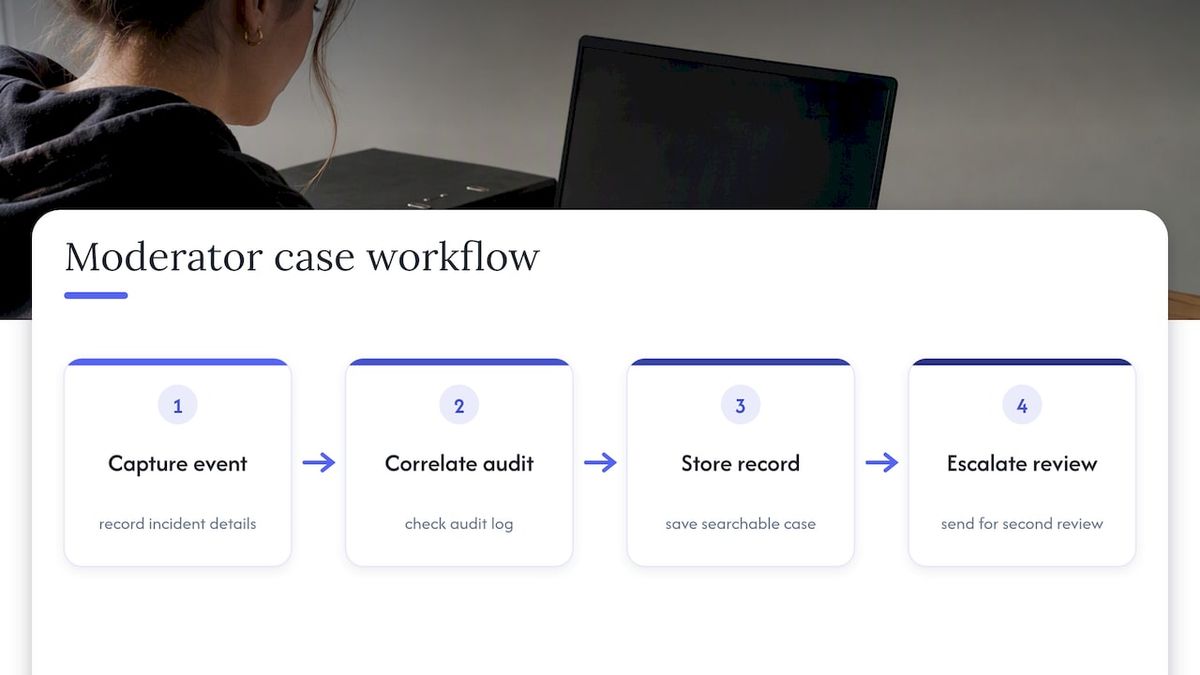
For small and mid-size servers, a workable baseline is simple: capture the event, correlate it against the audit log, store it in a searchable case record, and escalate anything that needs a second set of eyes.
What most servers get wrong about mod logs
Most guidance on this topic treats the audit log as if it were a complete moderation history, and it is not. It is a 45-day administrative record built for accountability, not an evidence archive, and servers that never set up their own case log discover this only after they need a record that no longer exists.
The bigger gap is not logging volume, it is correlation discipline. Plenty of servers run a logging bot and still cannot answer "did we ban this person for the same thing last time," because nobody cross-references bot entries against the audit log's user IDs and action types. A mod-log channel full of unlinked messages is only marginally better than no log at all.
Prioritize the boring part first: a consistent case ID scheme, a habit of pasting the audit entry ID into every case note, and a channel locked down to the smallest group of staff who actually need it. Automation and formatting can come later.
— Adam
How Better Antispam helps with mod logs

Building reliable mod logs takes less manual effort when the moderation actions generating those logs are handled automatically. Better Antispam responds to spam waves, scams, and raid attempts in real time, silencing spammers or locking channels before a human has to intervene, which means your case log fills with resolved incidents instead of ongoing chaos.
Relevant features for a logging workflow include automated spam and raid response with instant channel clean-up, flexible member verification options, permission change monitoring, staff sabotage protection, and case handling features for bulk moderation actions.
Add it to a staging server first, review its Data Access tab, enable only the scopes your team actually needs, and run a sandbox incident before going live. Pricing and setup details are available on the Better Antispam landing page.
Official documentation and policy links moderators should bookmark
Keep these on hand in your staff resources or incident playbook:
- Audit Logs Resource: API reference and retention rules.
- Members Page: moderator-facing member review tools.
- Bot Data Access: what logging bots can see.
- Sexual Content Policy: rules for age-gating explicit material.
Sources
- Audit Logs Resource - Documentation
- Visibility of Bot Data Access – Discord
- Members Page – Discord
- redbot.core.modlog — documentation
- Sexual Content Policy Explainer — Discord
FAQ
How to check Discord mod logs?
Open Server Settings, select Audit Log, and confirm you have the VIEW_AUDIT_LOG permission to see entries. You can filter by action type or moderator in the same panel, and developers can pull the same data through the audit-log API.
How to check mod activity on Discord?
The audit log shows administrative actions like bans, kicks, and role changes for the past 45 days, filterable by moderator or action type. For a member-specific view, the Members page and its Mod View surface account details and moderation tools in one place.
Is NSFW breaking Discord TOS?
Sexually explicit content is not automatically against Discord's rules, but it must be confined to age-gated channels under Discord's sexual content policy. Posting such content outside a properly restricted channel, or exposing it to underage members, does violate policy.
How do I see logs on Discord?
Native admin actions appear in Server Settings under Audit Log, retained for 45 days according to Discord's documentation. For anything older, or for detailed case notes, you need a bot-fed mod-log channel set up in advance, since Discord does not store that history itself.